Zapier Integration
Connect WP SMS to 5,000+ apps using Zapier automation.
Connect WP SMS to over 5,000 apps using Zapier automation workflows.
What is a Zap?
A Zap connects two applications, automating actions when specific triggers occur. For example, add new SMS subscribers to a Google Sheet automatically.
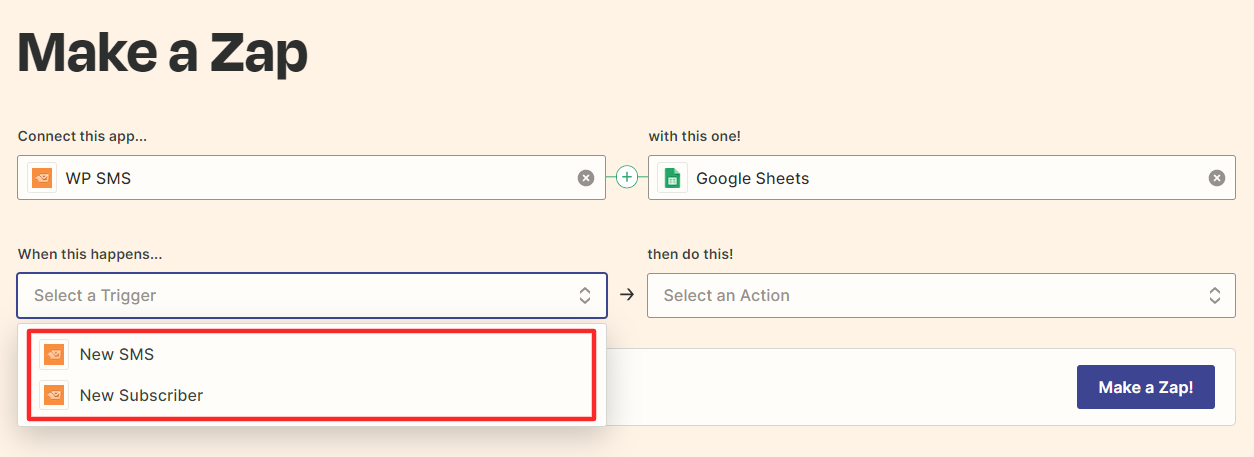
Available Triggers
| Trigger | Description |
|---|---|
| Send SMS | Activates when an SMS is sent |
| New Subscriber | Activates when a new subscriber is added |
Setup Steps
Step 1: Create a Zap
- Log in to Zapier
- Click Create Zap

Step 2: Choose WP SMS as Trigger
- Search for “WP SMS” in the trigger apps
- Select your desired trigger (Send SMS or New Subscriber)
Step 3: Connect WP SMS
- Click Connect to authenticate
- Enter your WordPress site URL
- Enter your WordPress username
- Enter an Application Password (not your regular password)

Step 4: Create Application Password
- Go to WordPress → Users → Profile
- Scroll to Application Passwords
- Enter a name (e.g., “Zapier”)
- Click Add New Application Password
- Copy the generated password

IMPORTANT
Use an Application Password, not your regular WordPress password.
Step 5: Choose Action App
Select the app where you want to send data (e.g., Google Sheets, Mailchimp, Slack).
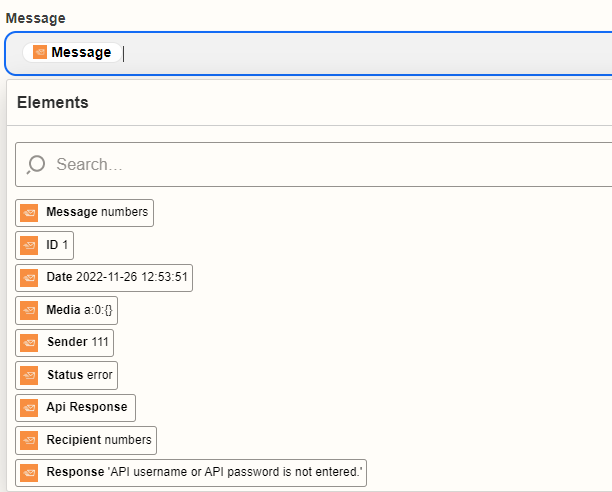
Step 6: Map Data Fields
Match WP SMS data to the action app fields.
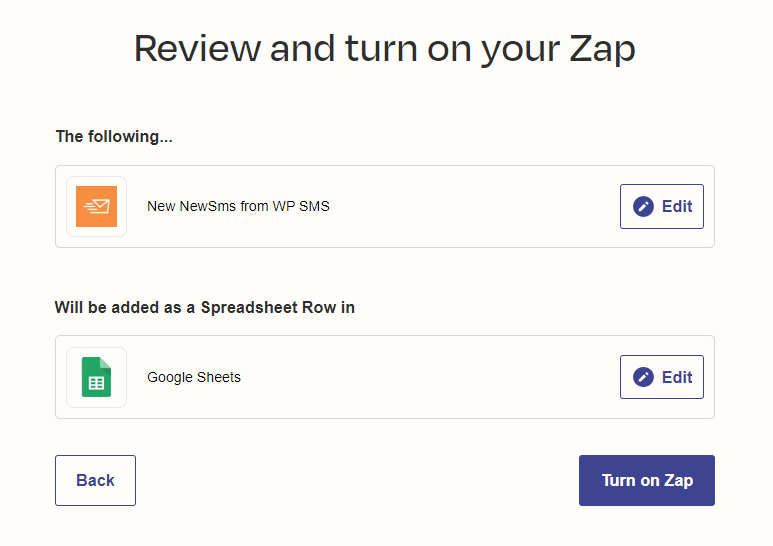
Step 7: Test and Activate
- Test the Zap to verify it works
- Click Turn on Zap to activate
Example Use Cases
- Add new subscribers to Google Sheets
- Send Slack notifications when SMS is sent
- Add subscribers to Mailchimp lists
- Create Trello cards for new subscribers
- Log SMS activity to Airtable
Related
- Manage Subscribers - View and manage subscribers
- SMS Notifications - Configure notifications
Last updated: December 28, 2025