How to Send SMS
Send single or bulk SMS messages from your WordPress dashboard.
WP SMS allows you to send single or bulk SMS messages to subscribers, WordPress users, user roles, or manually entered numbers.
TIP
Navigate to SMS → Send SMS to access the sending interface.
NOTE
Some features like scheduling are available in the All-in-One add-on.
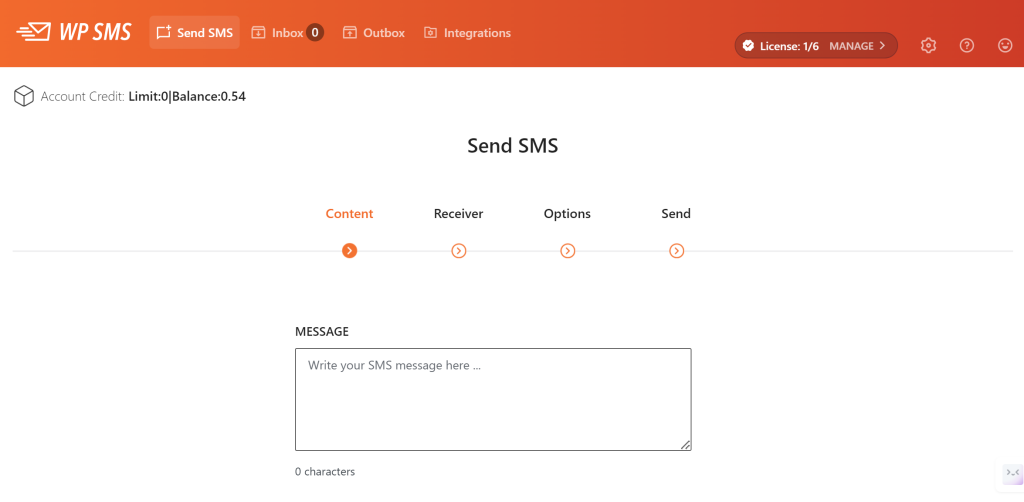
Step 1: Compose Your Message
Enter your message text in the Message field. Keep in mind:
- Standard SMS messages are limited to 160 characters
- Messages longer than 160 characters will be split into multiple parts
- Some gateways charge per message part
Step 2: Set From and To
From (Sender ID)
If your gateway supports custom sender IDs, enter the sender name or number. This is what recipients will see as the sender.
NOTE
Not all gateways support custom sender IDs. Some require pre-registered sender names.
To (Recipients)
Choose your recipients from the To dropdown or enter numbers manually:
| Option | Description |
|---|---|
| Subscribers | Send to your newsletter subscribers |
| WordPress’s Users | Send to specific users (search by username) |
| WordPress’s Roles | Send to specific user roles (e.g., Administrators, Editors, Subscribers) |
| WooCommerce Customers | Send to WooCommerce customers |
| Number(s) | Enter one or more phone numbers manually |
When using Number(s), separate multiple numbers with a comma:
+14155551234,+14155555678,+14155559012Step 3: Options
Configure additional sending options:
| Option | Description |
|---|---|
| MMS | Send media messages (if supported by gateway) |
| Schedule | Schedule message for later delivery |
| Flash SMS | Send as flash message (displays immediately on screen) |
Step 4: Review and Send
Before sending:
- Review your message and recipient list
- Check your SMS credit balance
- Click Send SMS to dispatch your message
Related
- Gateway Configuration - Set up your SMS gateway
- wp_sms_send() - Send SMS programmatically
- Notifications - Automate SMS notifications
Last updated: December 28, 2024