Import Subscribers from CSV
Bulk import SMS subscribers using a CSV file.
Import subscribers in bulk using a CSV file instead of adding them manually one by one.
TIP
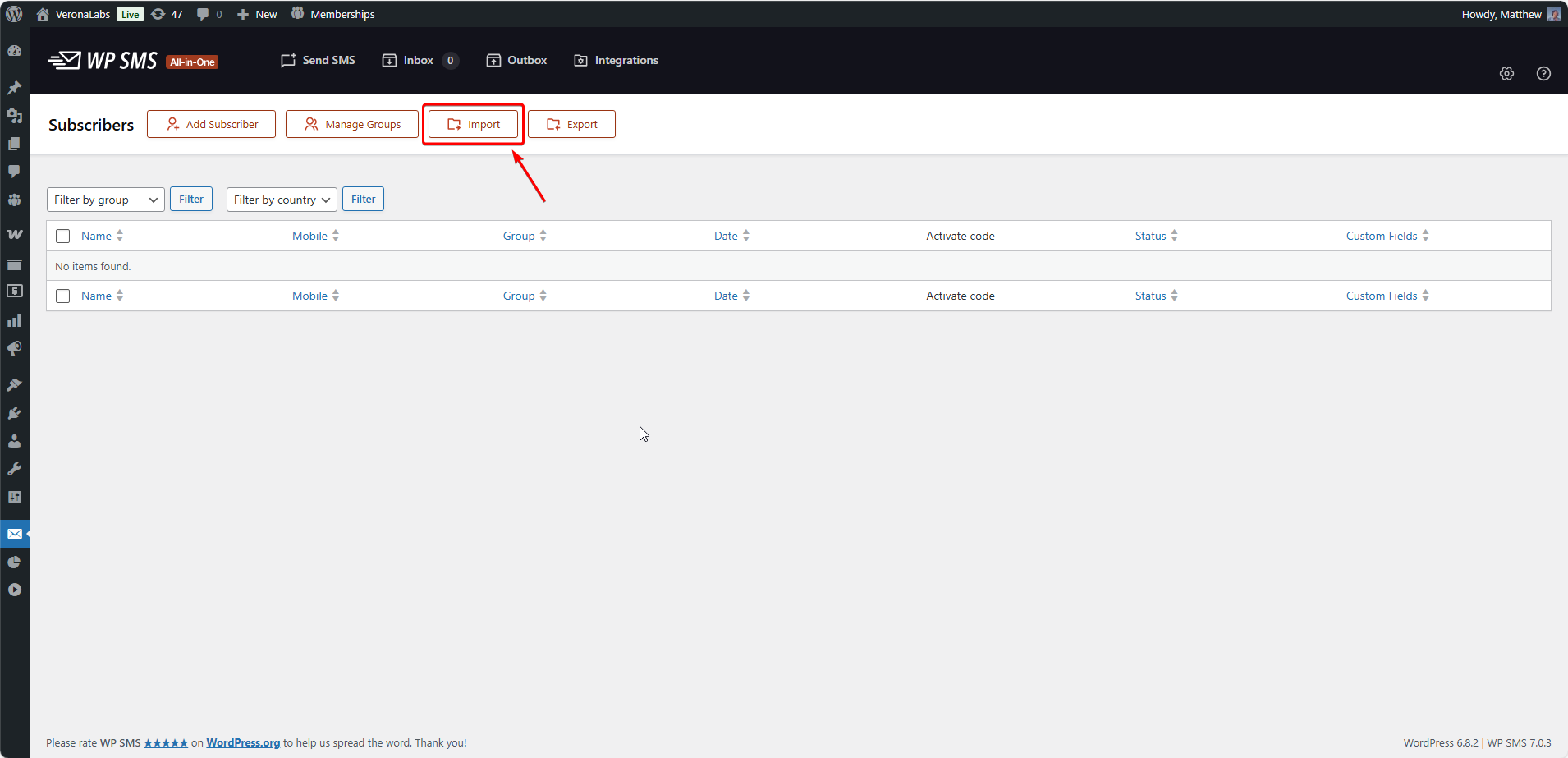
Navigate to SMS → Subscribers and click Import to access the import feature.
CSV File Format
Your CSV file must contain these columns:
| Column | Required | Description |
|---|---|---|
| Name | Yes | Subscriber’s name |
| Phone | Yes | Phone number |
| Group | No | Group ID |
Example CSV
Name,Phone,Group
John Doe,+14155551234,2
Jane Smith,+447911123456,3
Ali Hassan,+989121234567,2
IMPORTANT
If using phone numbers without country codes, go to SMS → Settings → General and disable International Number Input.
Import Steps
Step 1: Prepare Your CSV
Create a CSV file with the required columns. You can use Excel or Google Sheets and export as CSV.
Step 2: Access Import
- Go to SMS → Subscribers
- Click Import
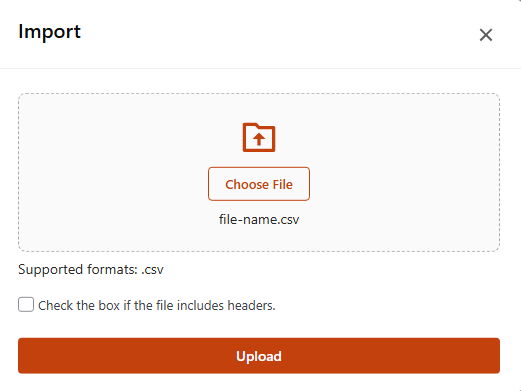
Step 3: Upload File
- Click Choose File and select your CSV
- Check File includes headers if your CSV has column headers
Step 4: Map Columns
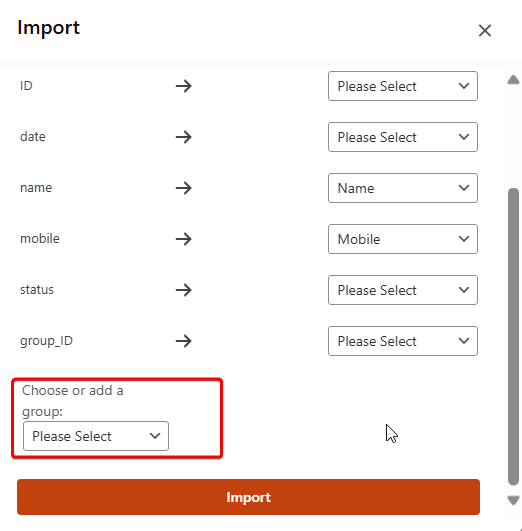
Match your CSV columns to subscriber fields:
- Name column → Name field
- Phone column → Mobile field
- Group column → Group field (optional)
Step 5: Select Group
Choose a destination group for all imported subscribers, or let them use the group specified in the CSV.
Step 6: Import
Click Import to start the process. A progress bar shows the import status.
Step 7: Verify
After completion, you’ll see:
- Number of successfully imported subscribers
- Any errors or failed imports
Troubleshooting
Invalid Phone Numbers
- Ensure numbers include country code (e.g., +1, +44)
- Or disable International Number Input in settings
Duplicate Subscribers
- Existing phone numbers are skipped
- Only new subscribers are added
Related
- Manage Subscribers - View and manage subscribers
- Manage Groups - Create subscriber groups
Last updated: December 28, 2025